
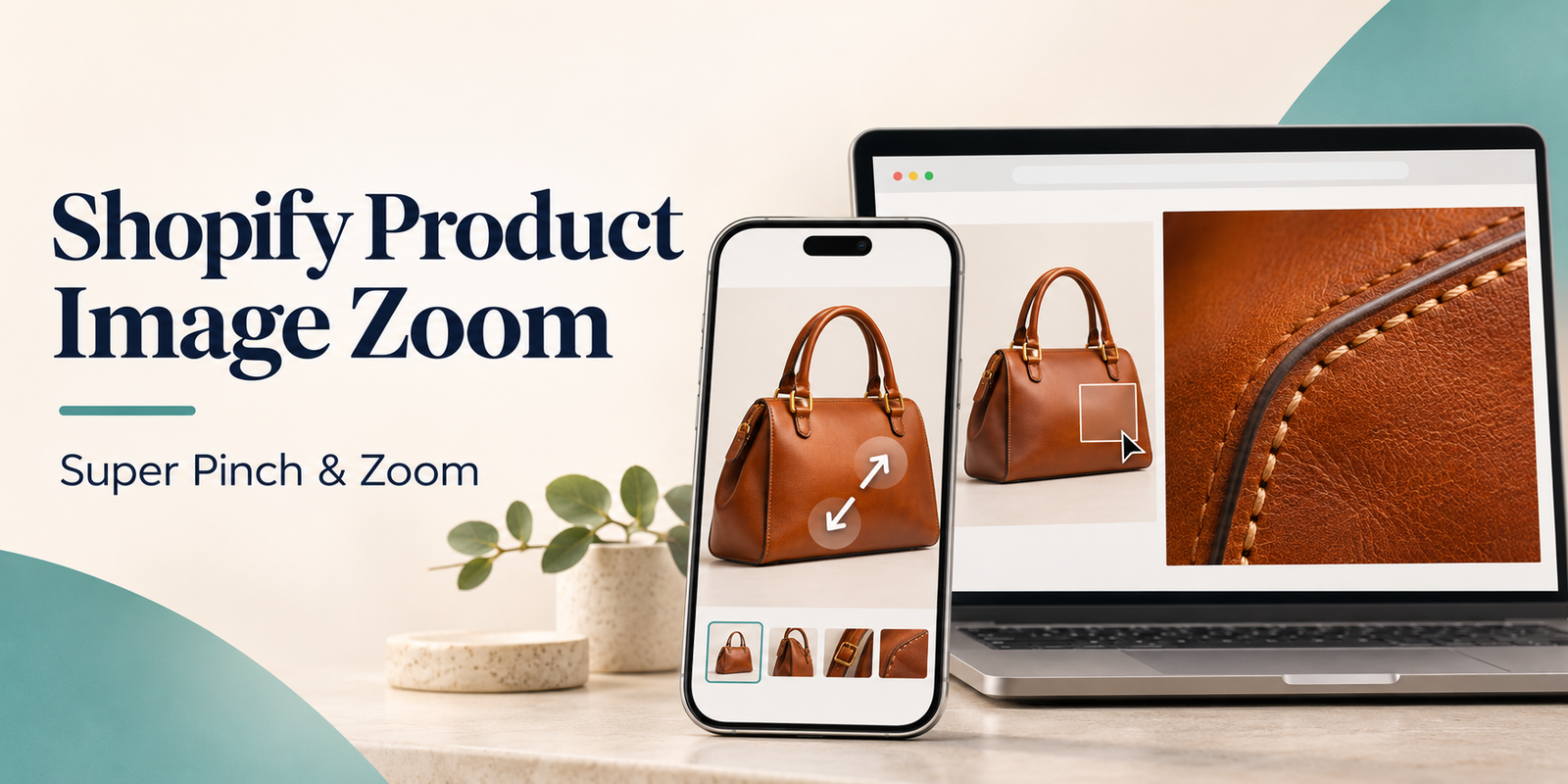
Super Pinch & Zoom by GreatsHub gives Shopify shoppers a closer look with mobile pinch-to-zoom, desktop magnification, and a full screen product gallery. You can also use the app to build shoppable galleries, show before-and-after comparisons, and keep Add to Cart within reach as shoppers browse. Super Pinch & Zoom on the Shopify App Store
Give shoppers a closer look on mobile and desktop
On mobile, shoppers can pinch to zoom into the product image. This is especially useful for details that are easy to miss in a standard gallery, such as the weave of a sweater, the setting of a gemstone, or the grain on a wooden tabletop.
On desktop, shoppers can explore product details using hover magnification and advanced zoom modes. A hover lens suits quick inspections, while popup and full screen views give shoppers more room to examine the product. Progressive desktop zoom is also available on supported plans. Explore the zoom modes
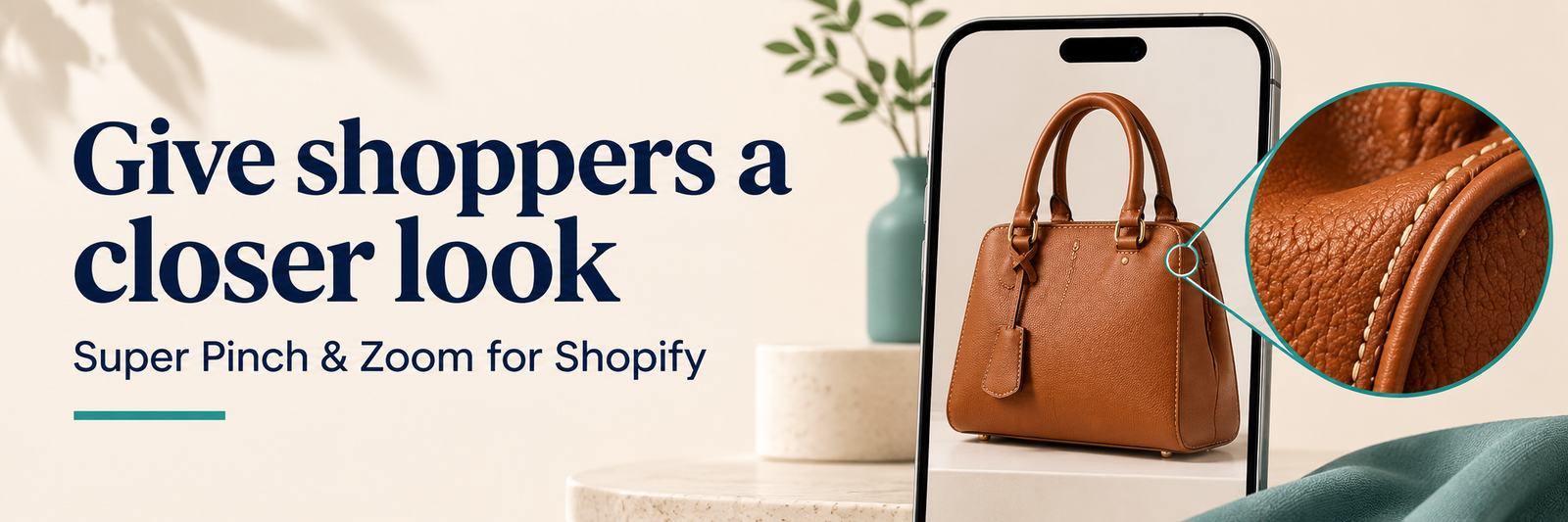
Start with a product where details matter. For a leather bag, use a full product photo, a close-up of the stitching, a shot of the hardware, and an interior view. Zoom makes each of those photos easier to inspect, and the different angles answer different buying questions.
Bring product photos, variant images, and videos into one viewer
The Smart Lightbox opens product media in a larger, responsive viewer. Thumbnails help shoppers move between angles, and supported plans let you include product videos and variant images. A clothing store can show how a dress moves in a short video, then give shoppers a closer look at the fabric and the color they’re considering. Explore the Smart Lightbox and media options
Merchants can customize controls, colors, thumbnail layouts, icon placement, captions, borders, and the zoom badge. Product targeting and manual media selection give you control over where the viewer appears and which media it includes. The app also offers image protection options and live previews for checking your setup. View customization and plan options
Turn lifestyle photos into shoppable galleries
A styled living room might inspire a shopper to buy the lamp, rug, or side table. With shoppable image tags, you can connect those items to their product pages directly from the photo. The same approach works for outfit look books, jewelry collections, and seasonal gift guides.
Choose a layout that suits the content. A grid makes a collection easy to scan. A carousel or slider works well when you want to show a short series of images in a smaller space. A masonry gallery accommodates images with different proportions, and a Shop the Look layout makes sense when the products are styled together. Gallery options also include captions and social sharing. See gallery layouts and shoppable features
Show what changes with a before-and-after slider
Some product differences are easier to see side by side. The Before/After Slider lets shoppers drag across two images to compare them. A home decor store could show the same room before and after adding a rug. A furniture brand could compare two finishes photographed from the same angle. Keep the crop and lighting consistent so the product difference is easy to see. Explore the Before/After Slider
Keep Add to Cart visible as shoppers scroll
A shopper may scroll through photos, read the product specifications, and check the sizing guide before deciding to buy. Sticky Cart keeps the product and Add to Cart action within reach during that journey. Preview it on a phone alongside any chat bubble or other floating controls so each element has enough room. See Sticky Cart in the Shopify listing
Use analytics to see which media shoppers explore
Where available on your plan, Zoom & Gallery Analytics helps you see how shoppers interact with product media. Use those signals to decide which photos to improve or add. For example, if shoppers often zoom in on a shoe’s side profile, test a dedicated close-up of the stitching or materials. Check current feature availability
How to add Super Pinch & Zoom to your Shopify store
- Install Super Pinch & Zoom from the Shopify App Store.
- Open your Shopify theme editor and enable the app’s zoom embed.
- Choose the zoom behavior, media, and viewer settings you want to use.
- Preview a product page on a phone and desktop. Test pinch-to-zoom, hover zoom, and opening and closing the gallery.
- Save your settings and check the experience on your storefront. Install Super Pinch & Zoom
Frequently asked questions
Can shoppers pinch to zoom on Shopify product images?
Yes. Super Pinch & Zoom supports touch gestures for inspecting product images on mobile. Available zoom and gallery controls depend on the plan you choose. Compare plans on the Shopify App Store
Can I show product videos and variant images in the lightbox?
Yes. Supported plans let you show product videos and variant images alongside regular product photos. This is useful when different colors, finishes, or styles have their own media. Check media support by plan
Is there a free plan?
Yes. The free plan includes basic product image zoom and manual media selection. Paid plans offer additional features and a trial. Super Pinch & Zoom carries the Built for Shopify badge. View current plans and trial details
Start with the product shoppers want to see up close
Pick one product with a detail worth inspecting. Try its gallery on your phone and ask yourself what a shopper would want to see before buying. Add that photo, give them a way to zoom in, and make it easy to return to the product page when they’re ready.
Install Super Pinch & Zoom on Shopify or try the live demo store.