
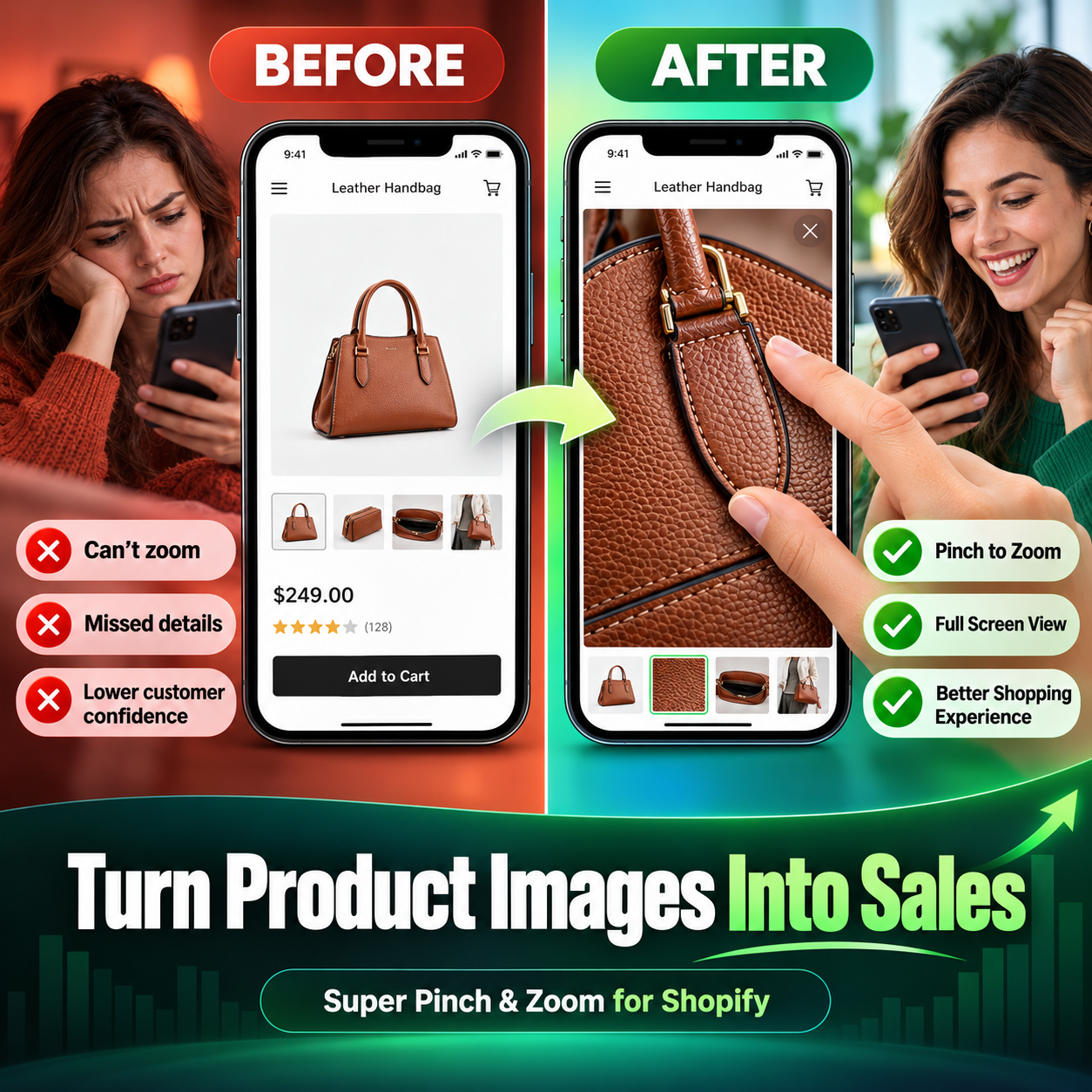
Help shoppers inspect the details that matter with mobile pinch to zoom and a larger product viewing experience. This guide explains the before and after, how to prepare your images, and what to test before making the experience live.
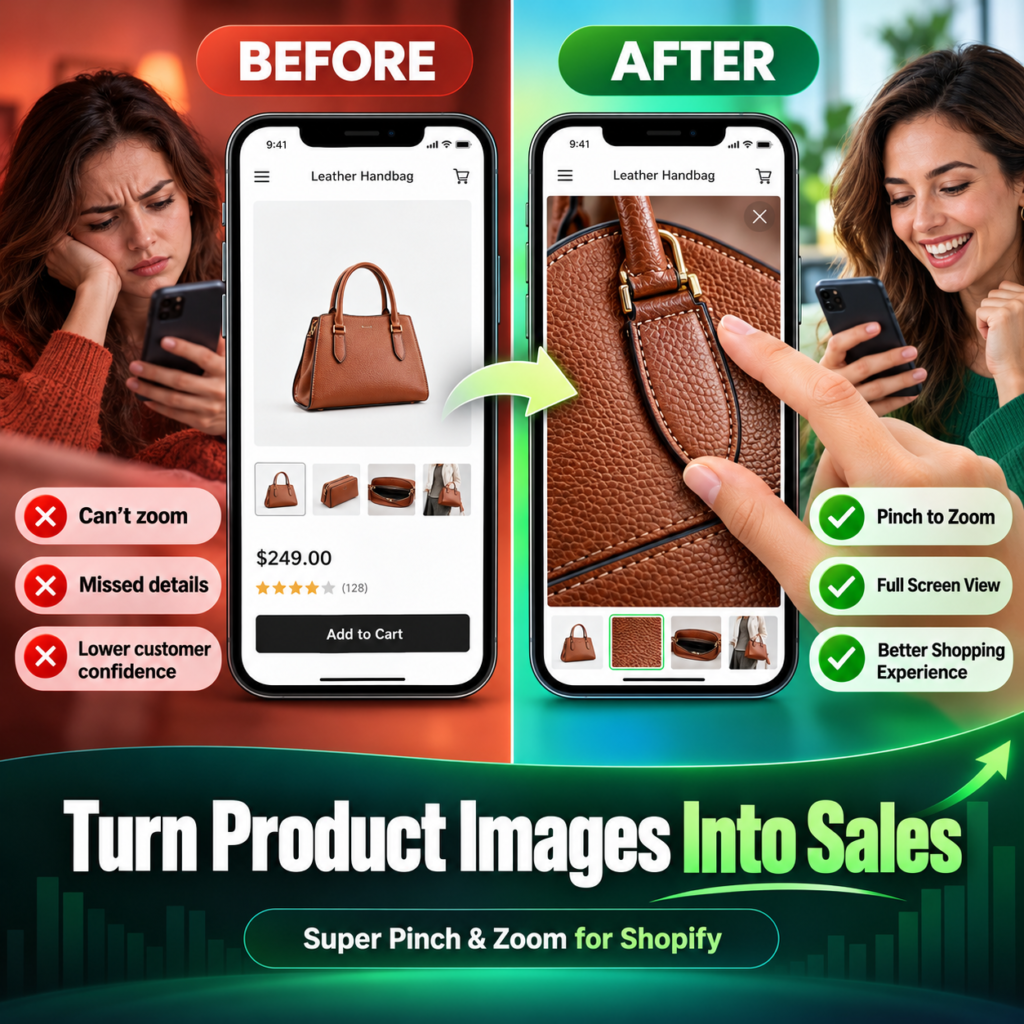
Before and after illustration of a shopper inspecting a handbag with Super Pinch & Zoom. Promotional concept image rather than an actual app screenshot.
Explore Super Pinch & Zoom on the Shopify App Store
Why small product images leave questions unanswered
A shopper finds a handbag in your store. The shape looks right, but they want to examine the leather grain, handle stitching and hardware. A small image shows the overall design while leaving those details difficult to judge. If the image cannot be enlarged, the shopper must rely on the description or ask for more information.
Shopify product image zoom gives customers a way to explore the photography you already provide. It can help answer visual questions, although its value depends on the quality of the original images and how well the experience works on the customer’s device.
The quick answer
Super Pinch & Zoom is a Shopify app from GreatsHub that supports closer product viewing, including mobile pinch zoom and desktop zoom. A larger viewing experience helps shoppers inspect visible details. Available features depend on the plan and configuration; check the app listing before choosing a setup.
What you will learn
What the before and after comparison means for your product pages
How mobile pinch zoom and larger image views support exploration
Which photography details deserve a closer look
A practical rollout checklist and ways to evaluate the result
Before and after the product viewing experience
Before the shopper cannot inspect the detail
In the graphic, the left phone displays a small handbag image. The shopper can see the silhouette, but the texture and construction are difficult to inspect. The message is about missing visual information, not a measured claim about every store’s performance.
After the shopper controls the view
The right phone shows an enlarged section of the handbag. The stitching, buckle and leather texture become easier to examine. The shopper can focus on the areas that matter to them instead of depending on a single distant view.
How Super Pinch and Zoom supports product exploration
Mobile pinch to zoom
Give shoppers a familiar way to enlarge product imagery on a touchscreen. For a handbag, a customer might zoom toward the strap attachment or surface finish. Test the interaction on your own products so the image remains easy to navigate and close.
A larger lightbox view
A lightbox lets shoppers focus on product media in a dedicated viewing space. The app listing describes image and video support in Smart Lightbox. Choose a configuration that gives customers clear navigation and an obvious way back to the product page.
Desktop inspection
Desktop shoppers also need a closer view. The listing describes desktop zoom options, including a hover lens and deeper inspection. Preview the available controls and choose an interaction that suits your audience and theme.
Check current features and plan availability
Choose images that answer real buying questions
Zoom cannot recover detail that is absent from the source photo. Begin with sharp originals, accurate color and useful angles. Include an overall product view as well as close photographs of features that customers commonly ask about.
Fashion and accessories: show fabric, stitching, clasps and finishes.
Jewelry: show settings, fastening mechanisms and surface detail.
Home products: show texture, edges, joins and decorative finishes.
Beauty products: show packaging, applicators and readable label photographs.
A zoomed image helps customers examine appearance. It does not establish exact size, material composition or suitability on its own. Keep dimensions, specifications and other essential product information in the written description.
Prepare a useful product gallery
Select sharp photos with consistent lighting and realistic colors.
Add front, back, side and detail views where useful.
Confirm that variant photos match the selected product option.
Write descriptive alt text for the content of each photograph.
Check loading and image clarity on a real mobile connection.
A practical checklist before you launch
Use a duplicate theme or preview environment for your initial checks. Exact setup steps depend on your theme and the app’s current instructions.
Open the official app listing and review compatibility, permissions and plan features.
Install the app through Shopify and follow the current onboarding instructions.
Choose the supported product media and configure the viewing controls.
Test opening, zooming, navigating and closing the gallery on mobile and desktop.
Check selected variants, portrait and landscape images, and any supported videos.
Confirm that product selection and Add to Cart still work as expected.
Test keyboard navigation and visible controls, then publish after the review passes.
Measure the experience without assuming the outcome
Record a baseline before you make changes. Review product page engagement, Add to Cart rate and purchase conversion using consistent definitions. If you track gallery opens or zoom use, avoid collecting unnecessary personal information.
Compare similar traffic sources and product groups over a reasonable period. Promotions, pricing, seasonality and photography changes can all affect results. A controlled test is more informative than attributing every sales change to zoom. No specific conversion increase is promised here.
Frequently asked questions
Will zoom improve a low resolution image
No. Enlarging a blurry source does not create reliable product detail. Replace poor originals before judging the viewing experience.
Does zoom replace product descriptions
No. Customers still need dimensions, materials, care instructions and other information that photography cannot fully communicate.
Can I use this on mobile and desktop
The app listing describes mobile pinch zoom and desktop zoom. Test your chosen plan and theme on the devices your customers use.
Which features are included in my plan
Feature availability can change. Review the live listing and the app’s current setup instructions for the features included in your selected plan.
Will it guarantee more sales
No. Clearer product viewing can help answer visual questions, but sales depend on the wider offer, audience and storefront experience.
Give shoppers a closer look
The before and after graphic highlights a practical improvement: making product detail easier to inspect. Pair strong photography with an intuitive viewing experience so customers can explore before deciding.
Ready to review the options for your store? Visit the official listing to see current features, compatibility and available plans.